Octarine's open API
On this page
Octarine now has an open scripting API. Write your own feature for Dota 2, Deadlock or CS2 in TypeScript — on your own or with an AI assistant. Other players' scripts install from a single file.
It all lives in the Octarine client, under Local scripts.
What scripts can do
A script is a TypeScript project: the client builds it and runs it in the game alongside Octarine's own features. What a script can use is described in the API declarations, and they're public on GitHub: Dota2SDK, DeadlockSDK and CS2SDK.
- Menu — your own page in the Octarine menu: toggles, sliders, binds, colour pickers and dropdowns, translated into English, Russian and Chinese.
- Drawing — panels and text on the screen, shapes and markers above units.
- Game events — match start and end, heroes appearing, every tick and frame.
- Actions — abilities and items in Dota 2, an ability on a key in Deadlock, movement commands in CS2.
- Files and data — your own images and JSON, and settings that persist between runs.
Here's a Dota 2 script that writes to the console when a match starts:
console.log("[my-script] loaded")

EventsSDK.on("GameStarted", () => {
	console.log("[my-script] match started")
})
No need to import the SDK: EventsSDK, Menu and the rest are available right away. In Deadlock and CS2, game events live on the Events object.
Create a script with the wizard
- Install Git for Windows — in the installer, pick “Git from the command line and also from 3rd-party software”. For code checks you'll also need Node.js 24 LTS.
- Turn on developer mode: in the client, Local scripts → Settings → Developer mode.
- Create a script: Local scripts → Scripts, pick a game, then Add → Create a script…
The wizard takes five steps: where the project goes, its name and menu tab, examples, AI tools and finish. The examples are working features, each in its own file under src/features: game events, a 2D panel on the screen, drawing in the world and a hero action. They're easy to read and rework into your own.
At the end the wizard creates the project from the template, downloads the SDK declarations for the game, adds the script to the list and opens the folder in VS Code or Cursor.
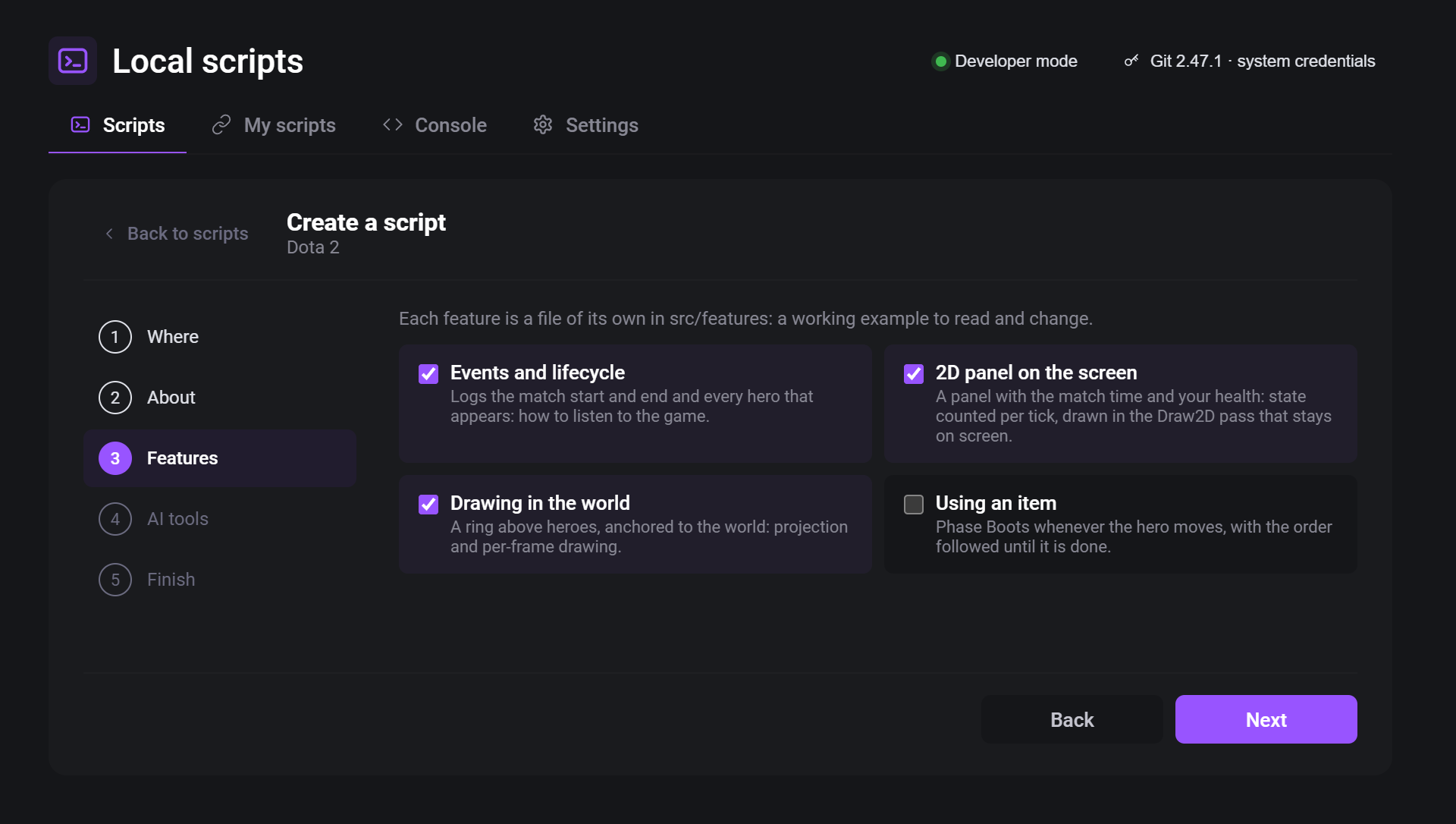
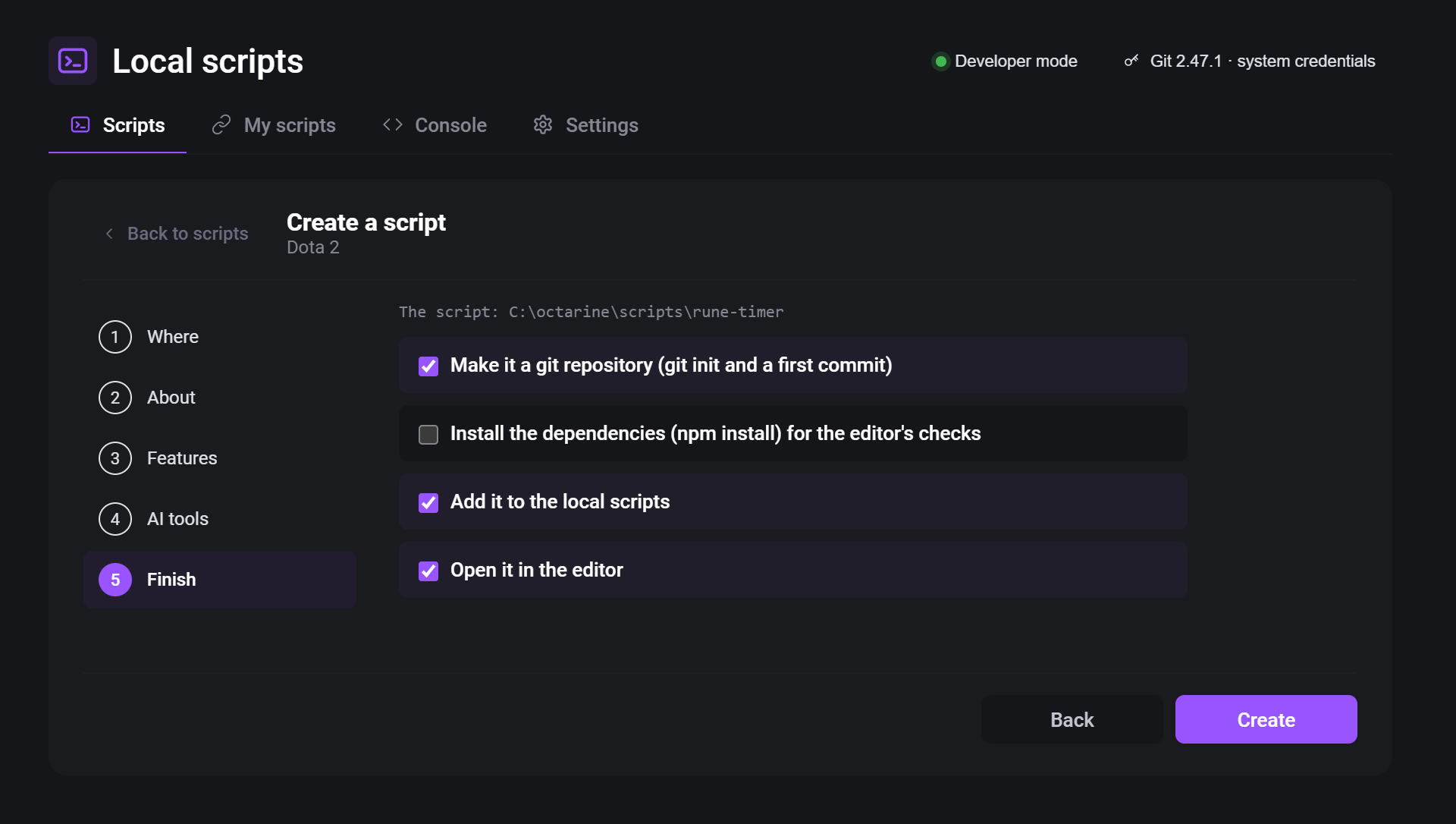
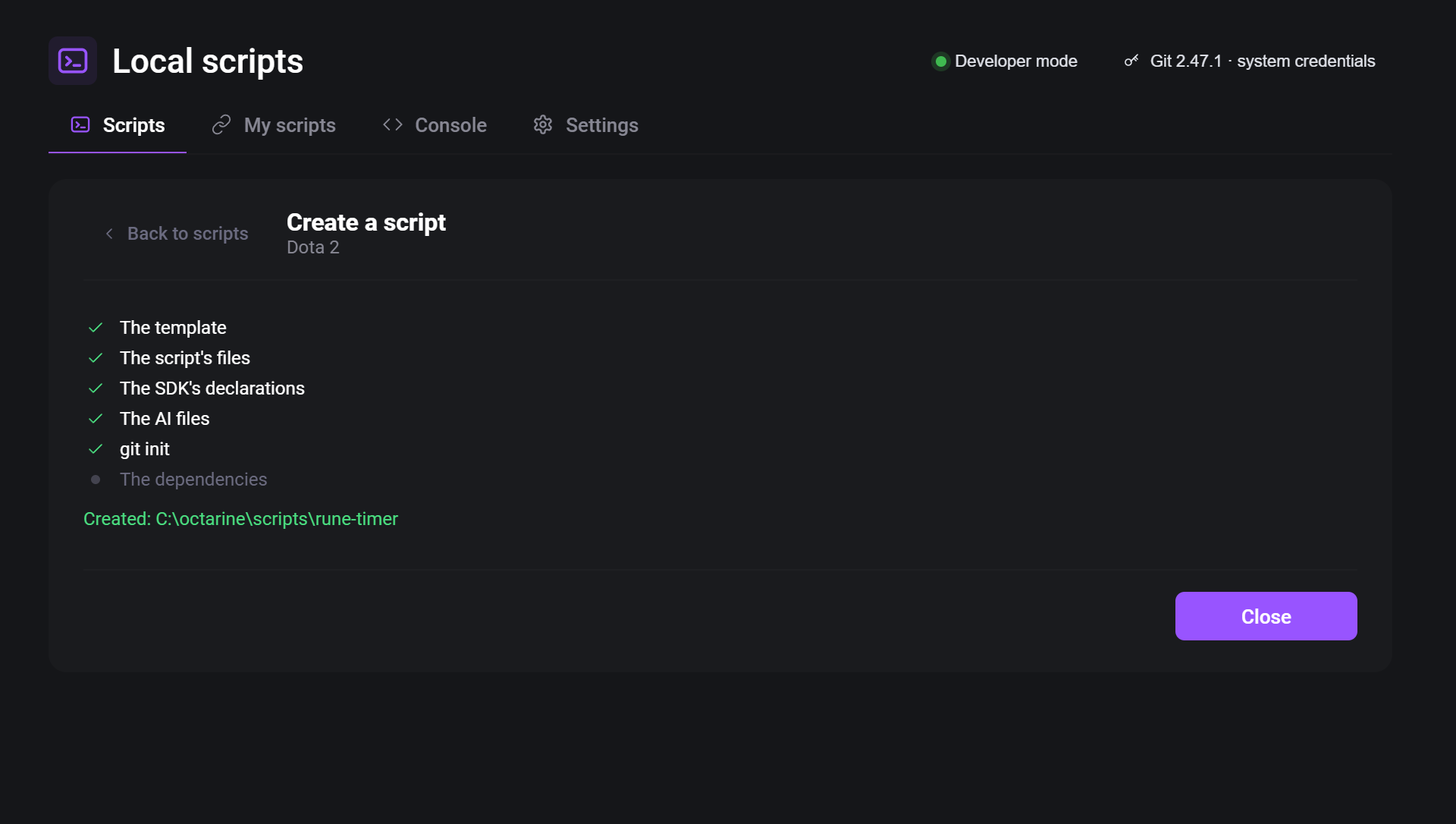
The Create a script wizard in the Octarine client.
Write it with AI
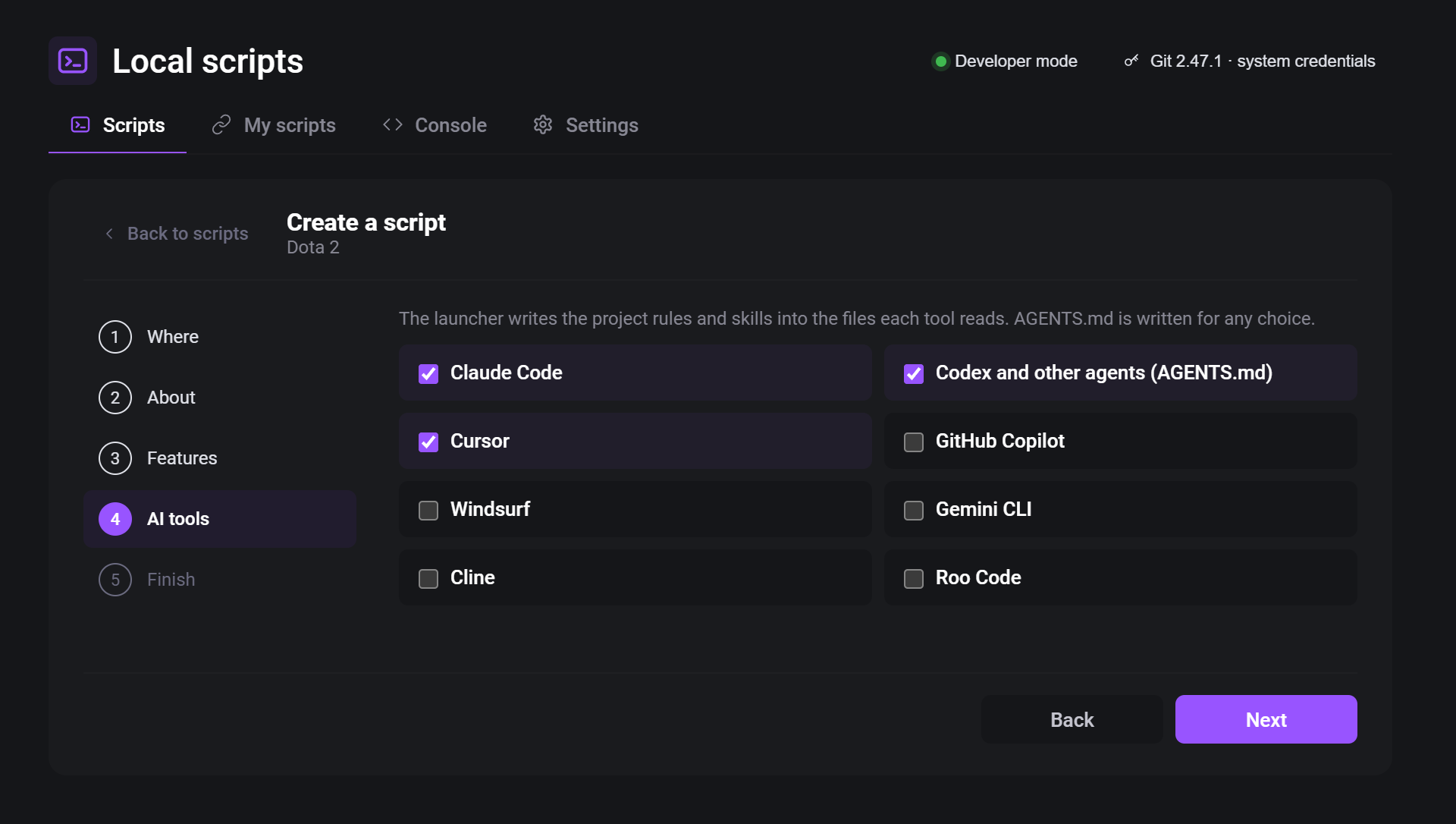
On the AI tools step, tick what you use: Claude Code, Codex, Cursor, GitHub Copilot, Windsurf, Gemini CLI, Cline or Roo Code. The launcher writes the project rules and skills into the files each of them reads. AGENTS.md is written whatever you pick, so other agents understand it too.
The rules cover what AI usually trips over:
- Check the API against the declarations. If it isn't in the
.d.ts, it doesn't exist, so the model looks up real methods instead of inventing them. - Compute on the tick, draw in the draw events. Objects are reused rather than created every frame.
- Done means checked. Before handing work back, the model runs
npm run check: types, lint, circular imports and files left out of the build.
On top of that, eight skills cover specific jobs: the menu, drawing, events, hero actions, performance, files and data, the dev loop and finding things in the API. The model reads the right one before it starts.
Then describe the task in plain words, like “make a panel with a timer to the next runes”. The model writes the code, and the client builds it as soon as the files are saved.
Builds and the console
Save a file and the client rebuilds the script on its own. If the build fails, the error shows up in the script's details, and the game keeps running the last good build.
If the game is already running, apply the new build from the Octarine menu: Settings → Reload Scripts → Reload, or press Delete.
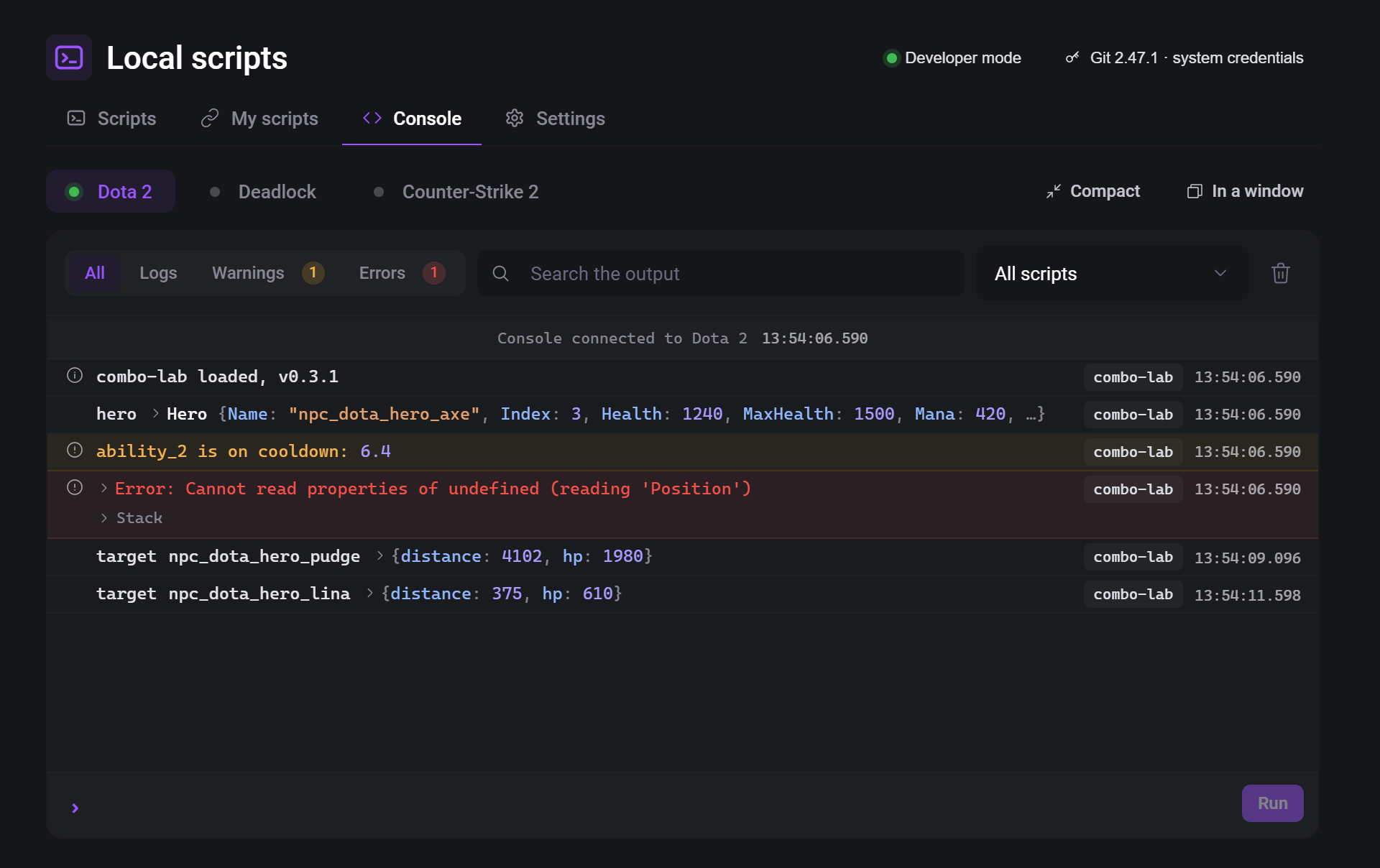
Local scripts → Console shows console.log, warnings and errors with their stack from the running game. At the bottom you can run JavaScript or TypeScript right in the game — handy for checking a value without rebuilding.
Other players' scripts
Another player's script goes in through Local scripts → Scripts → Add:
- Script file (.octs)… — a packed script from its author. It needs neither Git nor developer mode; the author sends new versions as files.
- Clone from Git… — the source from a repository. Pull new commits with Check for updates and Update in the script's details.
- Folders on disk… — a project that's already on your computer.
Before installing a file, the client shows its name, version, author and size. If you already have the script, it says which version you'll update to.
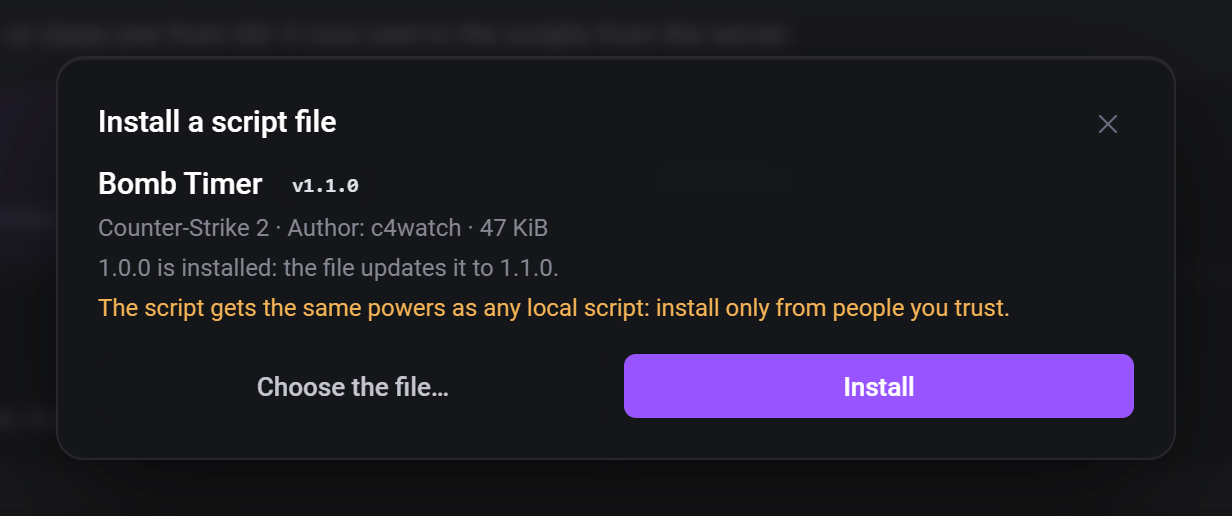
A script from a file gets the same capabilities as any local script — install scripts only from people you trust.
The #user-scripts channel on the Octarine Discord is the place to post your scripts and find others': hit New Post and pick the game's tag.
Share your script
In the script's details, choose Pack… and the client packs it into an .octs file. The code in the file is protected, so you don't hand over the source. Choose who can open it:
- Everyone who has the file — say, to post the script on Discord.
- Only these users.
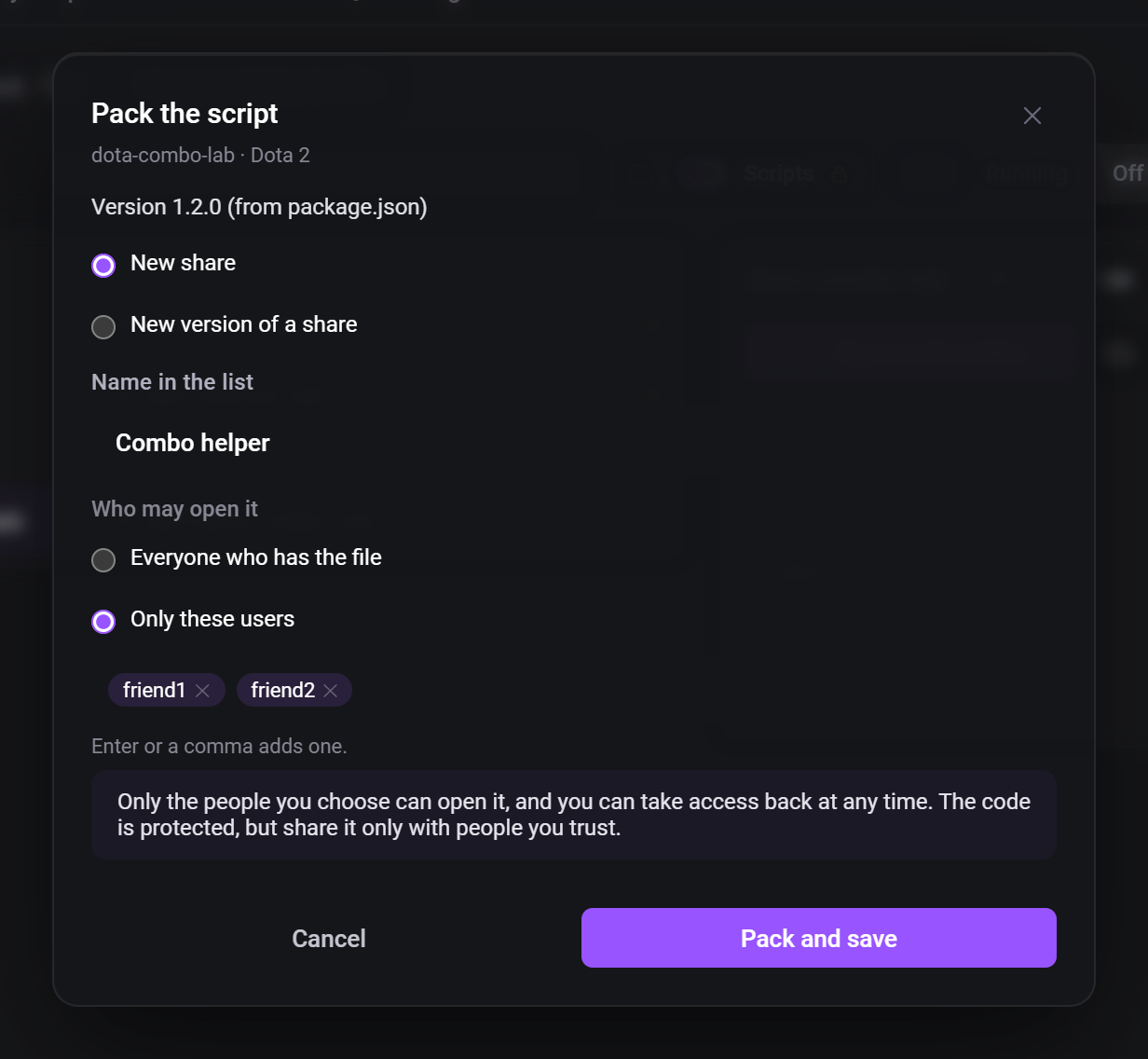
The version comes from the version field in package.json. Bump it and pack a New version of a share: recipients see that an update is out, and you send them the file.
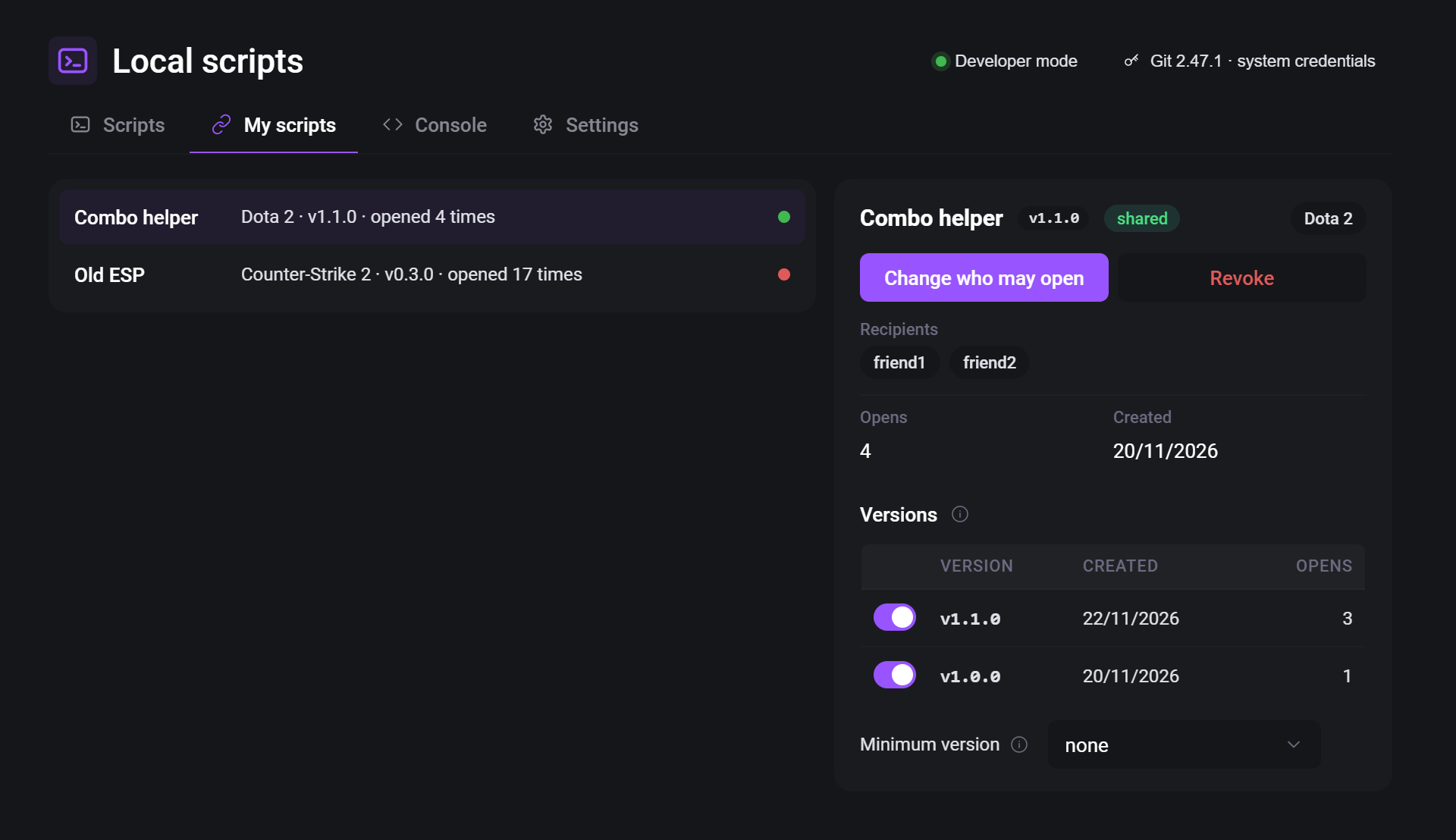
The My scripts tab shows who each script is shared with, how many times it's been opened and which versions are out. From there you can:
- Change who may open it.
- Switch off a single version or set a Minimum version — older files stop opening.
- Revoke the share — the file no longer opens, and installed copies disappear at the next sign-in.
Scripts on the old API
Create a project for the same game with the wizard, move your modules into src/ and import them from src/index.ts. Remove imports from github.com/octarine-public/wrapper/index, check signatures against the .d.ts files and run npm run check.